
Design your store with the Style Editor
For: Owner, Store admin, Fundraiser, Store editor, Parents & families
The Style Editor shows your store just like shoppers see it, and you can edit it right on the page. Log in at sportprinters.com. You land on My stores. Click Manage on your store, then Style Editor (or click Style Editor in Store Admin's top menu).
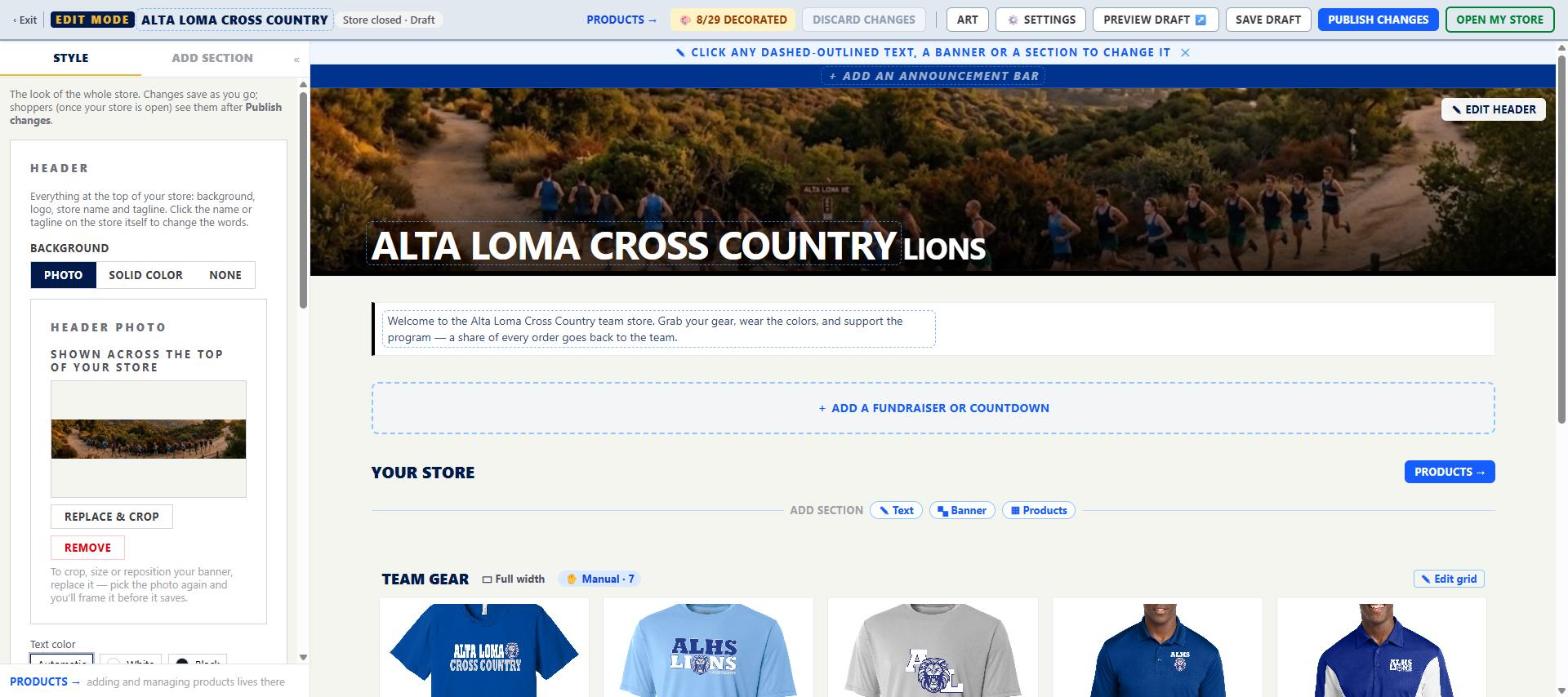
The Style panel
On the left, the Style tab has your store's overall look: the Header card (background photo/solid color/none, logo toggle, store name and tagline, mascot) and Store colors (Primary, Secondary, Accent, Text on primary). For logos and graphics, use Logos & graphics → Art.
Add sections
On the Add section tab, pick a section to add to the end of the page:
- Content block: a heading and text
- Banner / Hero: a color or image band across the page
- Product grid: hand-picked, by category or by collection
- Fundraiser / countdown: a goal meter or an order-by countdown (needs a fundraising % set first — see Fundraising meter and countdown)
To put a section in an exact spot, use the "Add section" line between sections on the page. Click ⚙ on a section to set it up, and ▲▼ to move it. Until you add a section, your store shows all products grouped by type automatically.
Saving and publishing
- Your edits save as you go. Save draft just confirms it — it's reassurance, not a separate save step.
- Preview draft ↗ opens your store with your unpublished edits, in a new tab. Only you and your team can see the draft.
- Publish changes makes your edits live, with a confirm first. When everything is live, the button reads Design published ✓.
- When you have unpublished edits, Live ↗ shows what shoppers see right now (not shown when there's nothing unpublished).
- Discard changes undoes your sections, text and colors back to your last publish. Logo, hero photo and featured products aren't affected. This can't be undone.
The fundraiser meter is different: changes to it show on a live store as soon as you save them. You don't need to publish.
Publishing is not the same as opening
Publishing your design doesn't open your store to shoppers. That's a separate step: Open my store / Close store (see Open or close your store) — both live right in the editor's top bar, next to Publish.
Only the Owner and Store admins can Publish changes or open and close the store. Store editors and Fundraisers can edit and save drafts.
Other buttons
‹ Exit goes back to Store Admin. Products →, Art and ⚙ Settings go to those pages. Share ↗ gets your link and QR code (see Share your store). A decoration counter like 🎨 4/13 decorated shows next to Products, so you always know how much art is still left to place.