
Ordering from your team store
For: Parents & families
Your coach or team sent you a link to your team's store. Everything you need is on that page. You don't need an account to order.
Place your order
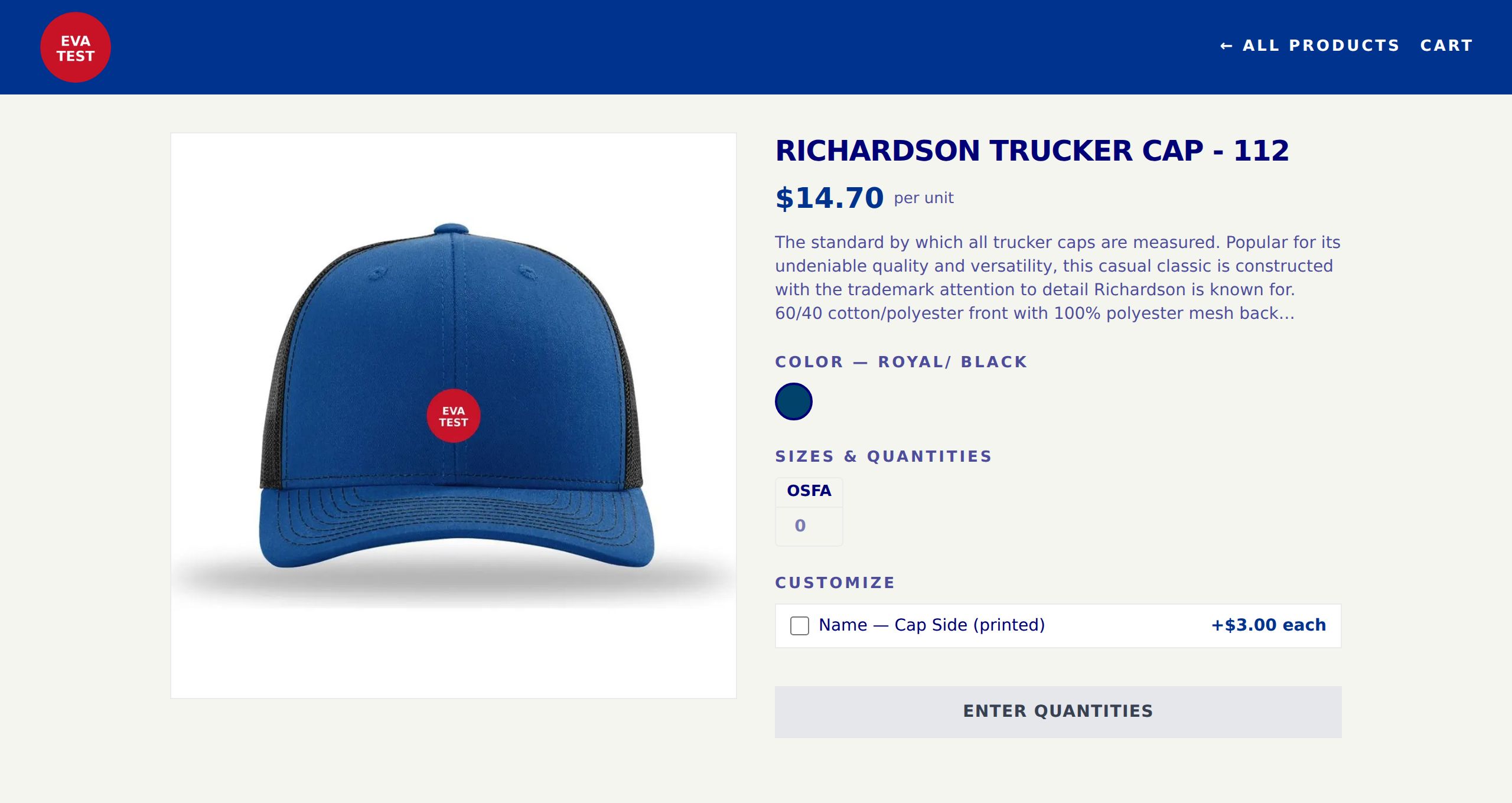
- Open the store link and tap a product.
- If the product comes in more than one color, pick one by tapping a color swatch. (A one-color product skips straight to sizes.)
- Under Sizes & quantities, type how many you want in each size box. You can order several sizes at once.
- If the team offers extras like a name or number, check the box under Customize and fill it in. See Choosing sizes and adding names or numbers.
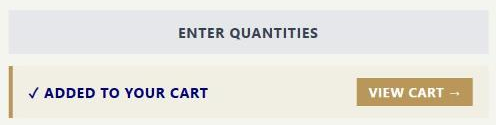
- Tap Add [number] to cart. You'll see ✓ Added to your cart with a View cart → button, and the cart count in the header updates.
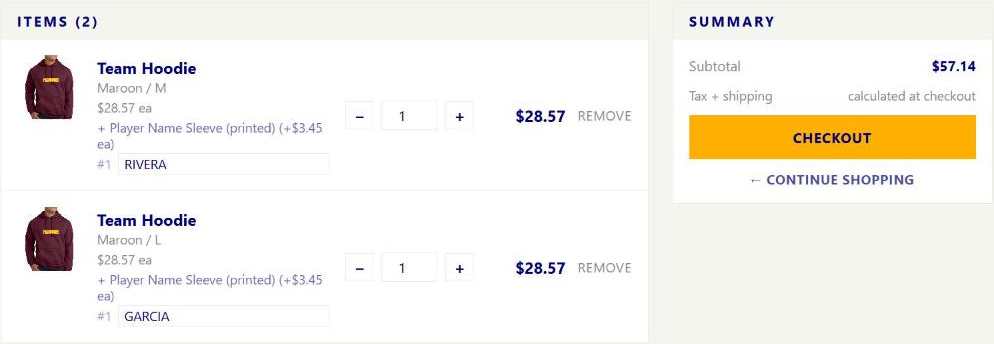
- Keep shopping, or tap View cart → (or the cart in the header) to go to Your cart.
- In your cart, check the sizes, quantities and names, then tap Checkout.
- Enter your email. Choose local pickup (if your team offers it) or enter a shipping address and pick a shipping option.
- Tap Continue to payment, enter your card, and tap Pay now.
After you pay, you'll see Thank you, your order is in with your order number. We also email you a confirmation.
Good to know
- Each store has its own cart. Items from one team's store don't mix with another store's cart.
- Check before you pay. Every item is made to order, so we can't take returns for the wrong size, color or spelling.
- Stores open and close. Most team stores take orders for a set window. If the store hasn't opened yet, you'll see This store isn't open yet.
- The button is gray? It tells you what's missing, right below it — things like Enter quantities, Enter your email, shipping address to continue, or Enter your phone for pickup.
Questions? Email [email protected].