
Invite people and manage your team
For: Owner, Store admin, Parents & families
Only the Owner and Store admins can invite people or change roles. Log in at sportprinters.com. You land on My stores. Click Manage on your store, then Settings → Team.
Invite someone
- Under Invite someone, type their email address.
- Choose a role from the menu: Store admin, Fundraiser, Store editor or Reports viewer. A short description of the role shows below the menu (for example, Store editor's reads "Products, art, layout, orders and settings. No money.").
- Click Send invite.
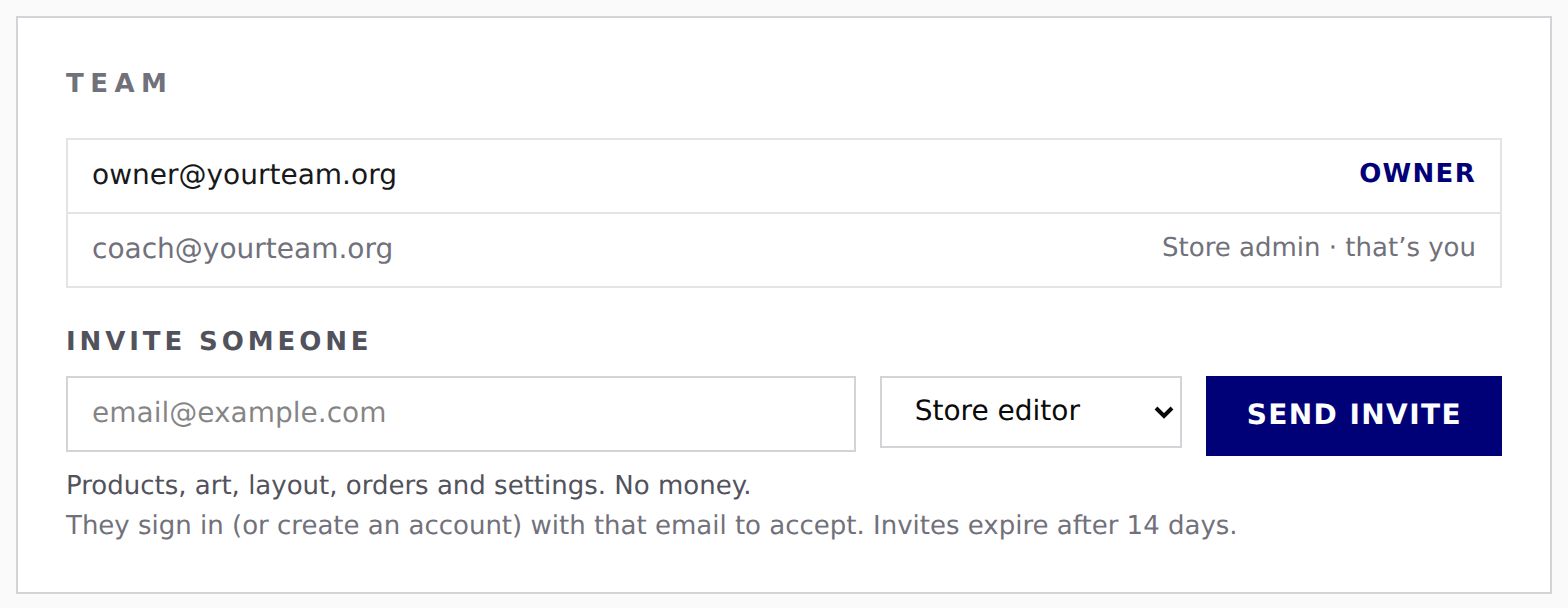
The invite email is only sent when you click Send invite. To accept, they sign in (or create an account) with that same email. Invites expire after 14 days.
Each team member's row is labeled "Role for <email>" with the same role menu. Click Remove next to their email to cancel or remove access — the same button is used for both an invited (not-yet-accepted) person and someone already on the team.
Change someone's role
- Pick a new role from the menu next to their email.
- Confirm: "Change
<email>from<old role>to<new role>?" Click Change role, or Cancel.
Remove someone
Click Remove next to their email. They lose access right away.
The Owner is locked. Their role can't be changed and they can't be removed — the team list shows them as "OWNER · that's you" (or their email, for anyone else looking at the list).