
Share your store: link, QR code and PDF catalog
For: Owner, Store admin, Fundraiser, Store editor, Parents & families
Where: At the top of sportprinters.com, click Log in. Enter your Email and Password and click Sign In. You land on My Stores. Click Manage on your store, then Settings at the top. In the left menu, under General, click Status & publishing.
(From the Products page you can also click Share your store (link, QR, PDF catalog) → under the Getting started checklist.)
Everything you need to share your store is on this page. Owners and Store admins see it (it's part of Status & publishing).
You can also click Share ↗ at the top of the Style Editor ("Get the link + QR code to share your store"). It shows once your design has been published.
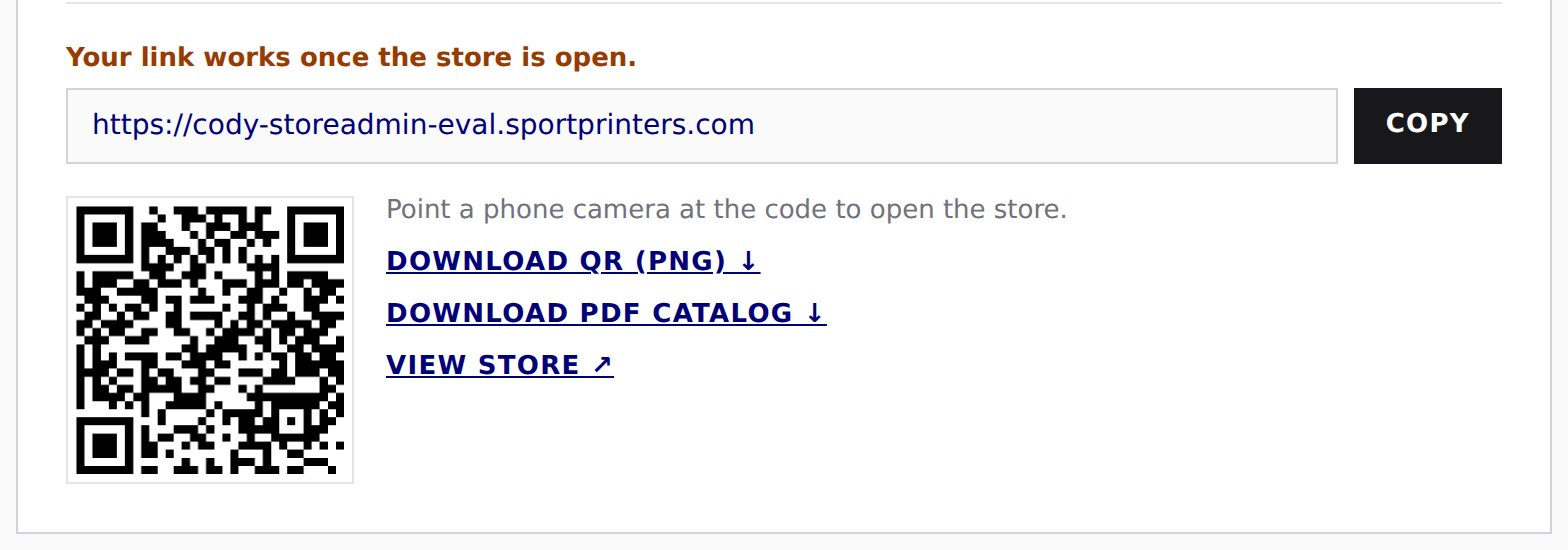
Your store link
Click Copy. It changes to Copied ✓ and your store's link is copied (for example https://your-store.sportprinters.com). Paste it into a text, email or team chat.
Your link works once the store is open. Until then, shoppers see a "This store isn't open yet" page (see Open or close your store).
QR code
"Point a phone camera at the code to open the store." Click Download QR (PNG) ↓ to save the QR code as a picture (for example your-store-qr.png) to print on flyers or show on a screen.
PDF catalog
Click Download PDF catalog ↓ to save a PDF of your store's products (for example your-store-catalog.pdf) to print or email. It looks like your store's page. Before your store is open you can still download it to preview it. Only you and your store team can open it until the store is open.
See it like a shopper
Click View store ↗ to open your store in a new tab.