
The Getting started checklist
For: Owner, Store admin, Fundraiser, Store editor, Parents & families
Where: At the top of sportprinters.com, click Log in. Enter your Email and Password and click Sign In. You land on My Stores. Click Manage on your store. The checklist is at the top of the Products page.
The Getting started checklist shows the five things every store needs, and how many are done (for example, 2 of 5 done). Each step has a button that takes you straight there.
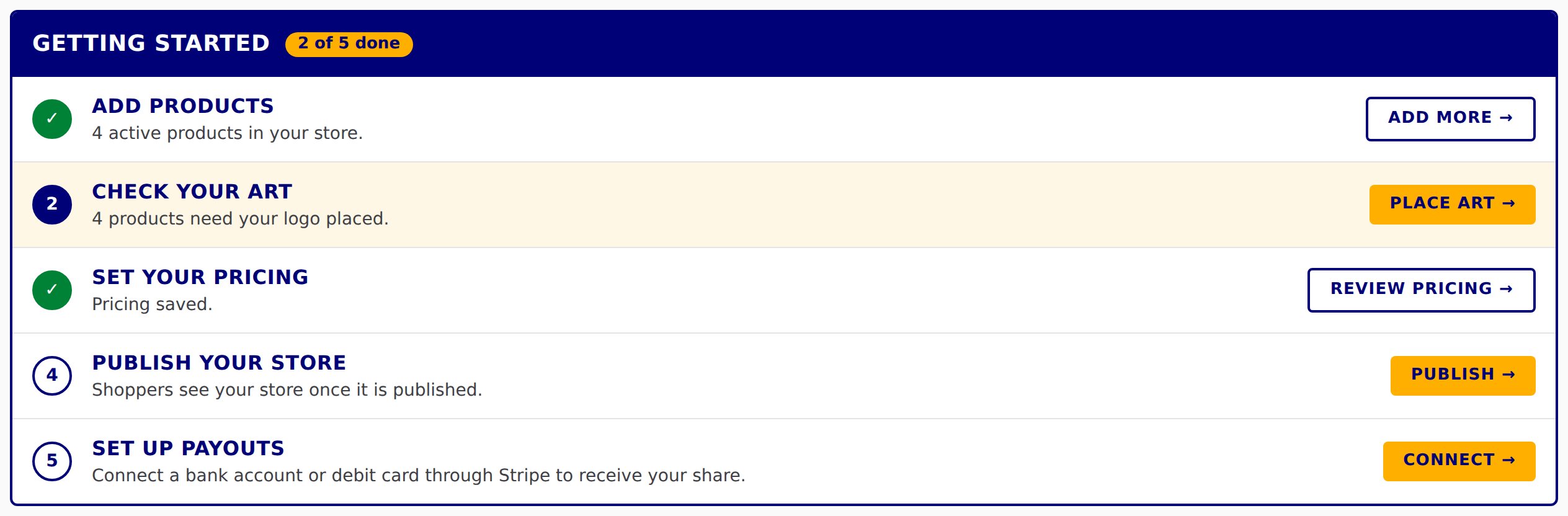
The five steps
- Add products: "Pick from Suggested or the Catalog, choose colors, and activate." Click Add products →. (See Add products to your store.)
- Check your art: "Add a product first, then place your logo on it." Click Review products →. (See Place your art on a product.)
- Set your pricing: "Add a markup or fundraising share. 0% is fine; press Save to confirm." Click Set pricing →. (See Set your pricing.)
- Publish your store: "Shoppers see your store once it is published." Click Publish →. (See Open or close your store.)
- Set up payouts: "Connect a bank account or debit card through Stripe to receive your share." Click Connect →. (See Get paid: set up payouts.)
Under the list, Share your store (link, QR, PDF catalog) → takes you to your store link, QR code and PDF catalog (see Share your store).
How a step gets checked off
A step that still needs doing says (to do). When it's done it shows ✓ and (done). For example, after you activate your first product:
- ✓ Add products (done): "1 active product in your store." The button changes to Add more →.
- ✓ Check your art (done): "Every active product has art placed."
Drafts don't count: Add products is done only when at least one product is active.
The buttons change as you go
- Check your art: when products still need art it says how many ("2 products need your logo placed.") and the button is Place art →. It opens the first product that needs art.
- Set your pricing: after you save pricing it says "Pricing saved." and the button is Review pricing →.
- Publish your store: once open it says "Your store is published." and the button is Status →.
- Set up payouts: if you started Stripe but didn't finish, it says "Stripe setup started — finish it to receive your share." and the button is Finish setup →. When it's done: "Payouts are connected." and View payouts →.
When most steps are done
Once 3 steps are done, the checklist shrinks to one line: how many are done, Next: and the next step, and that step's button. Click Show steps to open the full list again, and Collapse to shrink it.
When all five are done you see ✓ Your store is set up. Click Show steps to see the list, or Hide to put it away. Hiding only applies to the browser you're using.
Not everyone sees every step
The checklist only shows the steps your role can do:
- Owner and Store admin: all five.
- Fundraiser: Add products, Check your art and Set your pricing.
- Store editor: Add products and Check your art.