
The Fundraising Statement
For: Owner, Store admin, Fundraiser, Reports viewer, Parents & families
The Fundraising Statement is one page your booster treasurer or board can file. It covers fundraising only, never markup or costs.
Open it
Log in at sportprinters.com. You land on My stores. Click Manage on your store, then Fundraising in the top menu — the statement is right there, with Print / Save PDF. (Owners and Store admins also see the same statement on the Reports page, without the share-link option below.)
Pick dates with From and To above the page, or leave them blank for all time.
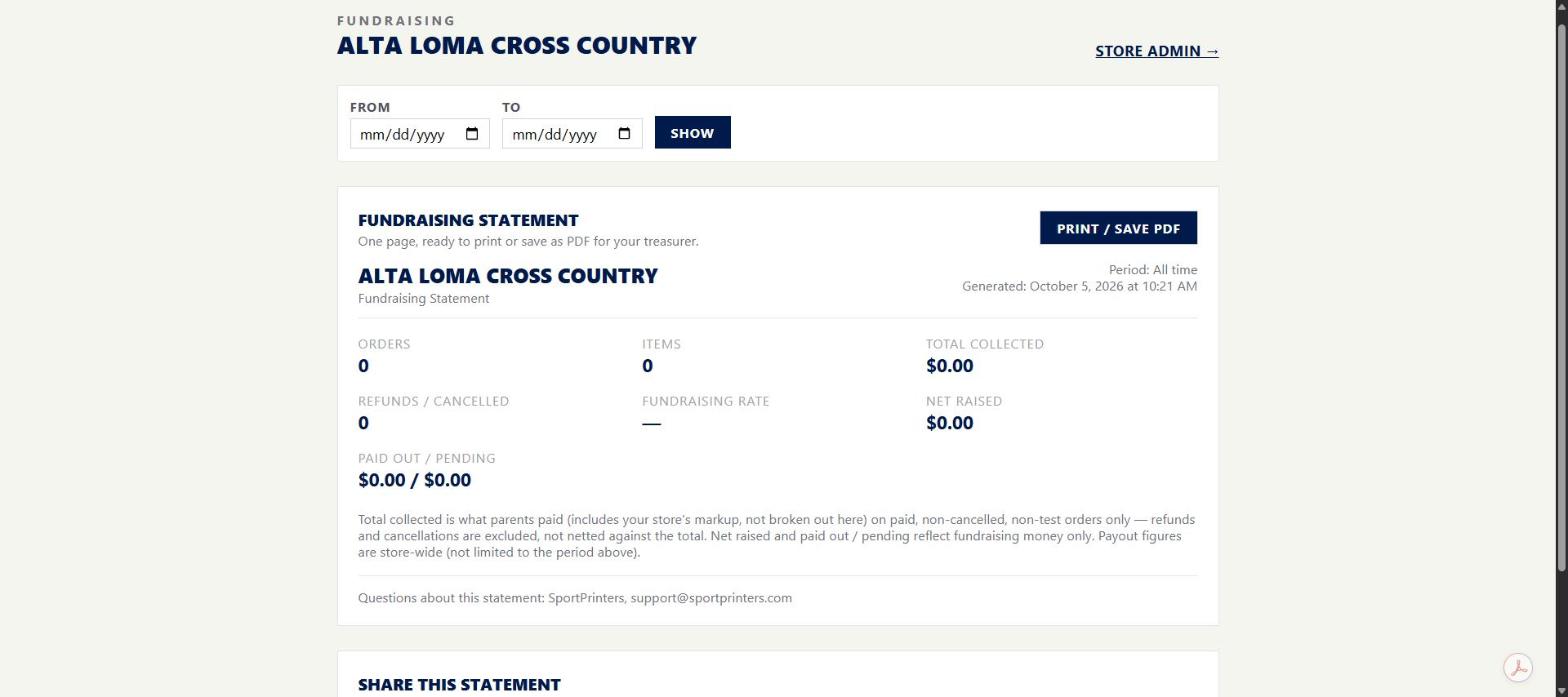
What it shows
- Period and Generated date
- Orders, Items and Total collected (what parents paid, including your store's markup, not broken out here — paid, non-cancelled, non-test orders only)
- Refunds / cancelled
- Fundraising rate and Net raised
- Paid out / pending (fundraising money only; these two figures are store-wide, not limited to the date range above)
- Fundraising by player, if your store asks buyers which player they're supporting
The footer reads "Questions about this statement: SportPrinters, [email protected]."
Click Print / Save PDF to print it or save it as a PDF.
Share a read-only link (Owner and Store admins)
On the Fundraising page, under Share this statement:
- Type who it's for in the box (placeholder: "Who is it for? (e.g. Booster board)").
- Click Create link.
- Copy the link right away — it's shown only once, in a box that reads "Link created. Copy it now; it is shown only once."
Anyone with the link (a pacificstyle.com/f/<token> address) can view the statement without signing in — nothing else in your store. The link's row shows how many times it's been viewed (for example, "Shared statement · created 10/5/2026 · 1 view"). Click Revoke — it asks "Revoke this link? Anyone using it will no longer see the statement," with a second Revoke to confirm — to turn it off for good.
Who can see it
Owner, Store admins, Fundraisers and Reports viewers can open the statement itself. A Reports viewer sees only this area. Only the Owner and Store admins can create or revoke a share link.