
Fundraising meter and countdown
For: Owner, Store admin, Fundraiser, Parents & families
Show parents how close you are to your goal, or count down to an order deadline. Log in at sportprinters.com. You land on My stores. Click Manage on your store, then Settings → Fundraising meter (or, in the Style Editor, Add section → Fundraiser / countdown).
Before you start
Turn on fundraising first by setting a Fundraising % above 0 in Settings › Pricing.
Set it up
- Raised so far shows your current total, computed from paid orders automatically.
- Turn on Show the fundraising progress bar, Show the countdown, or both — they're two independent blocks, run either or both.
- Fill in:
- Campaign Title: shown on both blocks. Blank uses "Team Fundraiser."
- Goal ($): blank means no goal — the store just shows the total raised on its own.
- Campaign Ends (optional): required for the countdown; on the progress bar it adds an "Ends in…" line instead.
- Click Save.
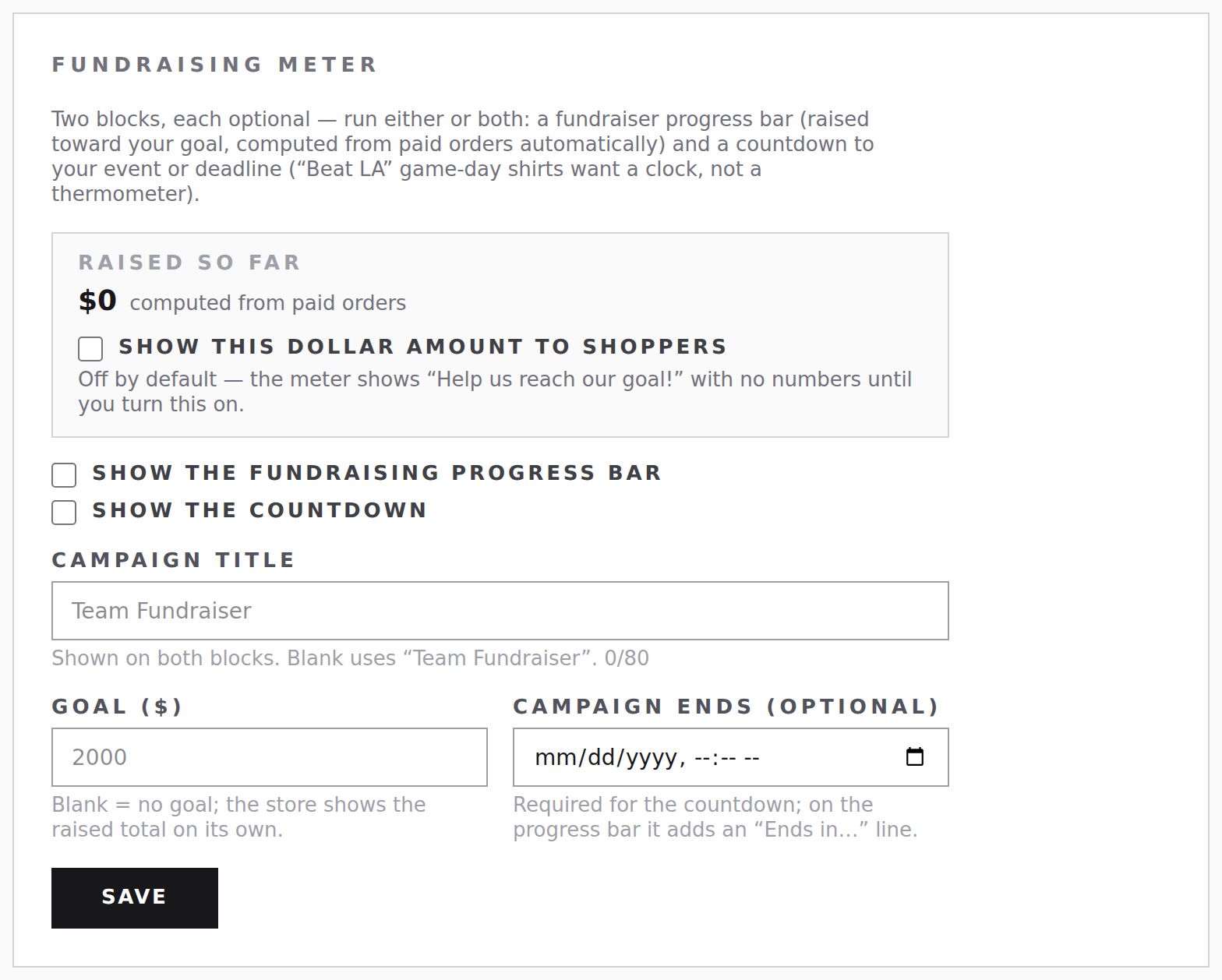
Show this dollar amount to shoppers is off by default. When it's off, the meter shows "Help us reach our goal!" with no numbers.
Changes to the meter show on a live store as soon as you save. You don't need to publish.