
Place your art on a product
For: Owner, Store admin, Fundraiser, Store editor, Parents & families
Where: At the top of sportprinters.com, click Log in. Enter your Email and Password and click Sign In. You land on My Stores. Click Manage on your store. You place art in the Place art step of Create Product (see Add products to your store).
You need art first. If you see "No art to place yet. Upload your team's logo or graphics, then come back here to place it on this product.", click Open Art → (it opens Art in a new tab) and upload your logo (see Your logos and graphics (Art)). Then come back to the product. You can also click Art at the top of Store Admin.
Your logo may already be placed
When you add products from Suggested or the Catalog, we place your store logo for you on each color where we already know the right spot. Dark garments get your Logo for dark backgrounds and light garments get your Logo for light backgrounds. If you only uploaded one logo, we use it on every color. Any other color is left for you to place. Always check auto-placed art in Place art before you go on.
Steps
- In Place art, under Color to decorate, pick the color you want to start with.
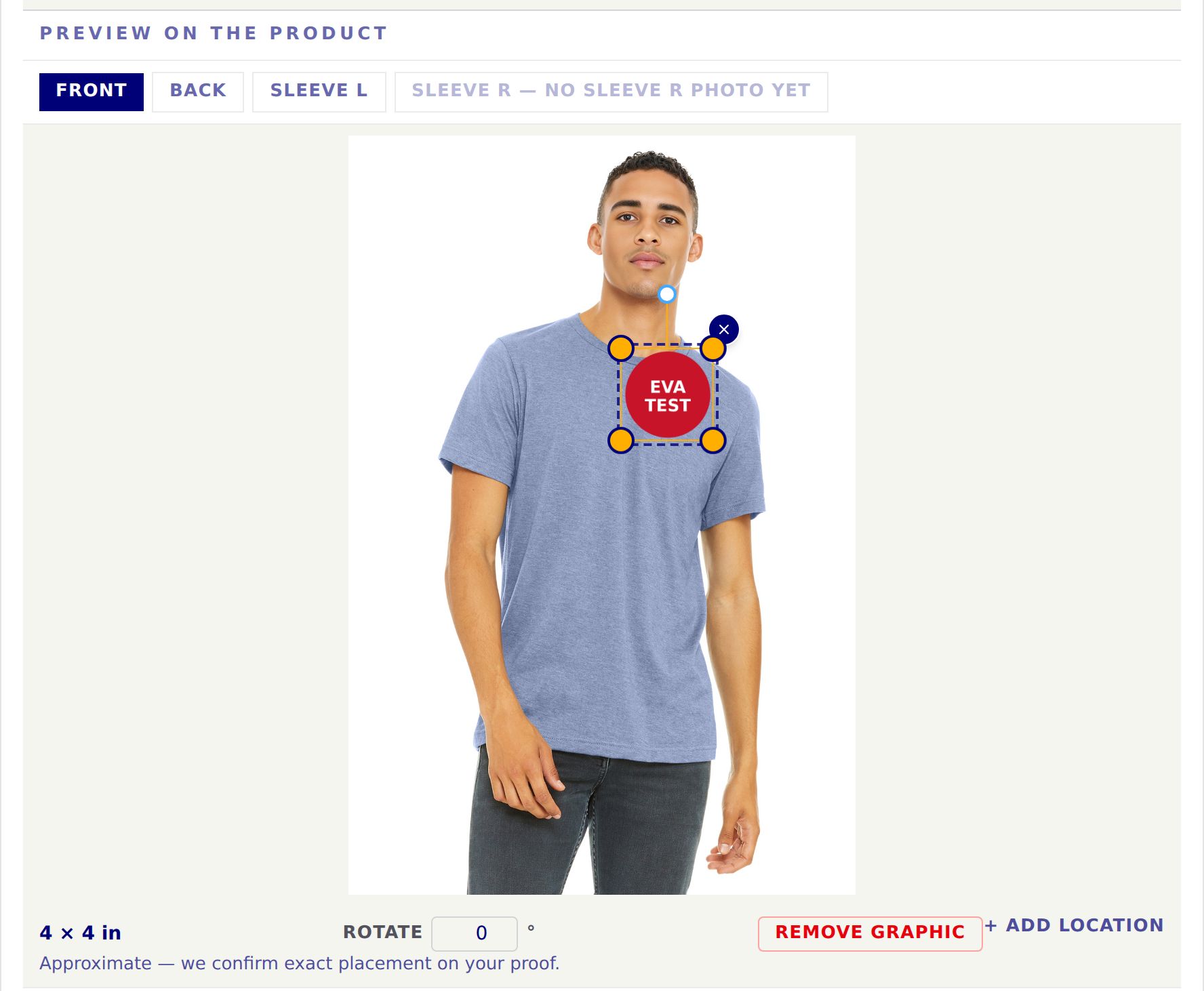
- Under Preview on the product, pick the side: Front, Back, Sleeve L or Sleeve R.
- Click Choose graphic on the spot where you want art (for example the left chest). Your graphic appears on the garment.
- "Click the graphic to move, resize or remove it." The size shows next to it, for example 4 × 4 in.
- The position is approximate. We confirm exact placement on your proof.
- Click Save placement. You see ✓ Saved and "Saved to color. Spread this placement further?"
- Click **Apply to the other N colors to put the same art on every color of this product, or Not now** to do each color yourself. When it's done you see "✓ Placement applied to N other colors."
- Click Continue: Pricing → to go on.
On a product that is already active, the same tools are on its Decoration tab, under Place your store art: click a color, then place, resize, Rotate or Remove graphic, and + Add location for another spot.
Good to know
- Save placement bakes the front view onto that color's photo, so your store shows the decorated image right away. Placements on other views are kept for production.
- When every active product has art, the Check your art step of the Getting started checklist shows ✓ (done).
Finding products that still need art
- The Check your art step in the Getting started checklist counts them and its Place art → button opens the first one.
- On Products › Store products, click the Needs decoration filter. If every product has art you see "Nothing matches."
- A draft product's card shows what's next, for example Next: Place art.
- On an active product's Colors & Images tab, a Needs art box lists each color ("Color needs art") with a Place art → button.
- In the Style Editor, a button like 🎨 8/10 decorated shows how many products have art. Click it to go to Products.