
Add products to your store
For: Owner, Store admin, Fundraiser, Store editor, Parents & families
Where: At the top of sportprinters.com, click Log in. Enter your Email and Password and click Sign In. You land on My Stores. Click Manage on your store. Store Admin opens on Products.
A new store starts with no products ("This store has no products yet."). You pick them from two lists:
- Suggested: a short list of popular team items.
- Catalog: everything we carry. Use the search box (Search name, style #, brand…) to find a style by name or number.
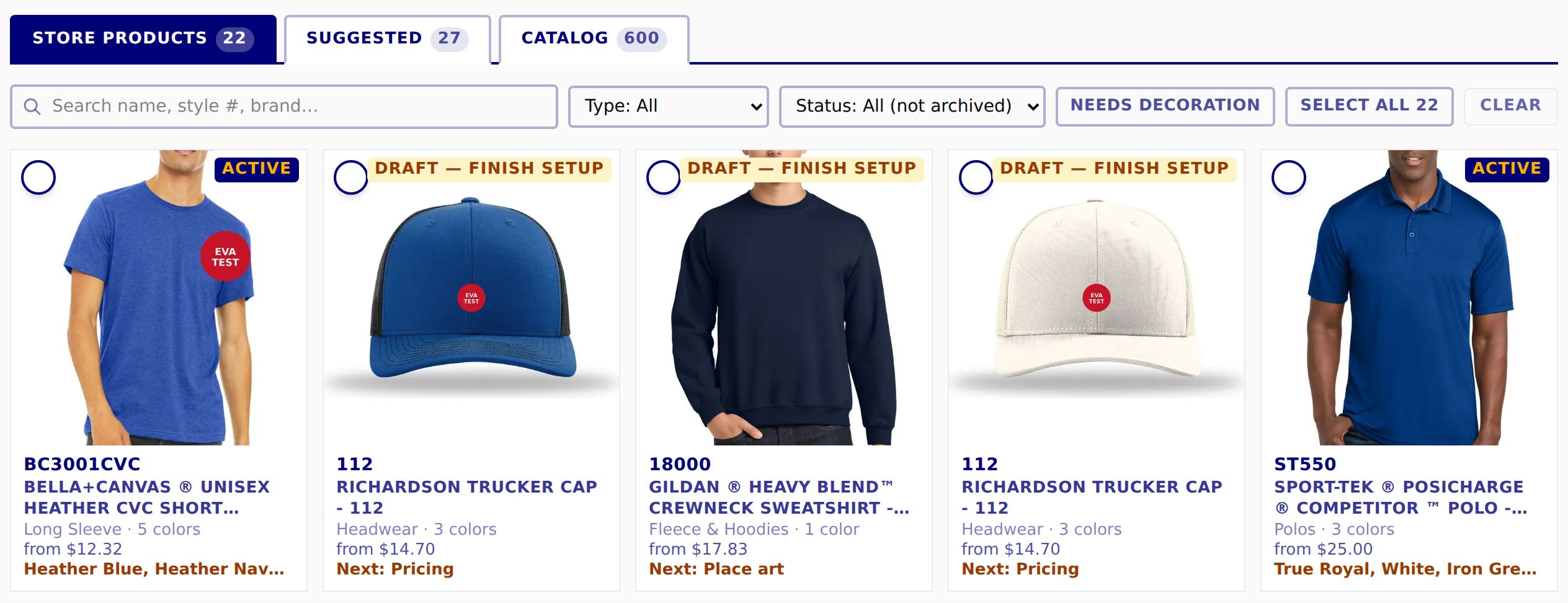
- Store products (the first tab): what's already in your store.
Steps
- On the Products page, click the Suggested tab. To see everything, click the Catalog tab. Each tab shows how many items it has.
- Find the item you want and click Add to store.
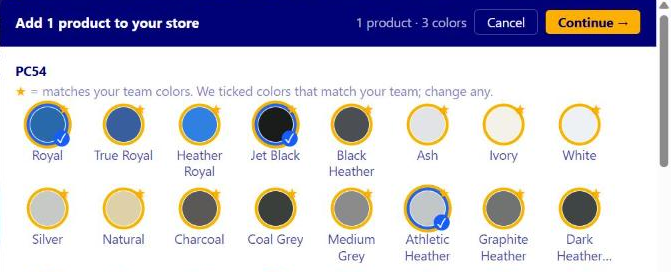
- The Add 1 product to your store panel opens with every color the item comes in.
- ★ marks colors that match your team colors. We've already ticked the matching ones.
- Click a color to tick or untick it. The top of the panel shows how many you picked, for example 1 product · 3 colors.
- Click Continue →. (Click Cancel to go back without adding anything.)
- Create Product opens for that item. Its steps are Title · Colors · Graphics · Place art · Pricing · Options · Review. The first three are already done for you, so it starts at Place art. Finish it to put the product in your store (see Finish a product with Create Product).
Good to know
- The product isn't in your store until you click Activate on the last step (Review).
- Save draft keeps your work (you see Saved). Exit takes you back to Products, where the unfinished product is listed under Store products so you can finish it later.
Your logo goes on for you
When you add from Suggested or the Catalog, we place your store logo on each color where we already know the right spot (your light or dark logo, to suit the garment). Colors we can't place are left for you in Place art (see Place your art on a product).
Add many at once
- Click the circle on each card you want, or click Select all (it shows how many, for example Select all 27).
- A bar shows how many you picked (27 selected). Click Add: suggested colors to add each one with its suggested colors, or Add: choose colors… to pick colors yourself. Clear selection starts over.
- You stay on the list, and a message says what happened, for example "3 styles added; logo placed on 9 colors, 2 colors need placing."
- The new products are under Store products marked DRAFT — FINISH SETUP. Open each one to finish it.
Already in your store
An item you already have says Add again… instead of Add to store. Click it and you're asked "Already in your store": "This style is already here. Add colors to the existing product, or make a separate one?"
- **Add colors to "product name"** adds the new colors to the product you have.
- Add as a separate product makes a second product of the same style.
Click Continue to colors, or Cancel.
The Store products list
Each card shows ACTIVE or DRAFT — FINISH SETUP, and a draft shows what's next (for example Next: Pricing). Above the cards you can filter by Type, by Status (Draft — finish setup, Active, Inactive, All incl. archived, Archived) and with Needs decoration.